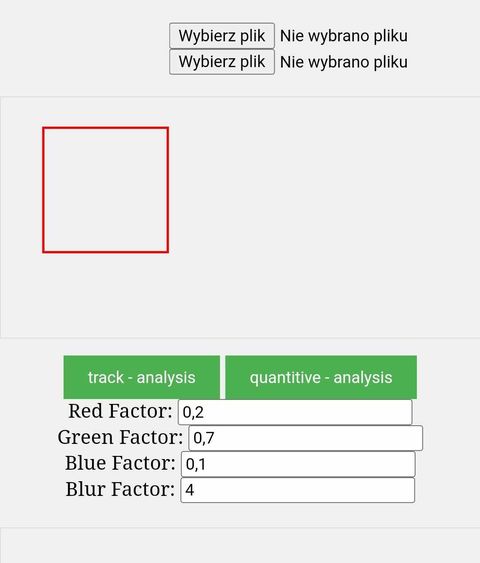
Step-by-Step Guide
-
Single Input (TLC Plate Image):
- Upload a photo of the TLC plate using the first file input.
- Ensure the tracks on the plate are parallel to the x-axis of the photo for accurate analysis.
- The position of the plate within the chamber and the position of the phone on the glass at the top of the chamber are flexible, as long as the tracks are clearly visible.
-
Dual Input (Spots Plate and Bare Plate Images):
- Upload both a photo of the plate with spots and a photo of the bare plate using the respective inputs.
- Both plates must be positioned in the same location within the chamber to enable accurate digital subtraction.
- Neither the specific placement of the plates nor the specific positioning of the phone on the chamber glass is fixed, but both must remain consistent between the two images.
-
Select the Track for Analysis:
- Drag and resize the red box by its borders to cover the entire track you wish to analyze.
-
Adjust Settings (If Necessary):
- Modify the red, green, blue, and blur factors if you are using non-standard illumination conditions.
- For typical setups, leave these settings at their default values.
-
Analyze Tracks:
- If normalization is not required, click the Track Analysis button. In this case, the second (normalization) input is not needed.
- If normalization is required, click the Quantitative Analysis button. Use the plate with spots for the first input and the bare plate for the second input.
Application Interface Overview
The screenshot below illustrates the application interface. Follow the numbered elements for clarity: